Test the work that takes two people.
An admin sends an invitation. A teammate accepts it. Test both browsers, including the email, membership state, and permissions the new member receives.
InvitationMember access
After acceptingProject dashboard
Projects read / write
Billing no access
The right permissionsInvitation and member access checked
Use two test accounts
Keep the admin and invited member in separate browser sessions, each with its own permissions.
Follow the invitation email
Check that the right link reaches the intended test inbox and opens the member’s account.
Check the access granted
Confirm the new member can open the project and cannot change settings reserved for an owner.
Follow the invitation into the app
Use independent test identities for the sender and recipient. Check that the right link reaches the intended inbox, the invitation can be accepted, and the app records the new membership.
- Correct recipient
- Invitation link received
- Membership recorded
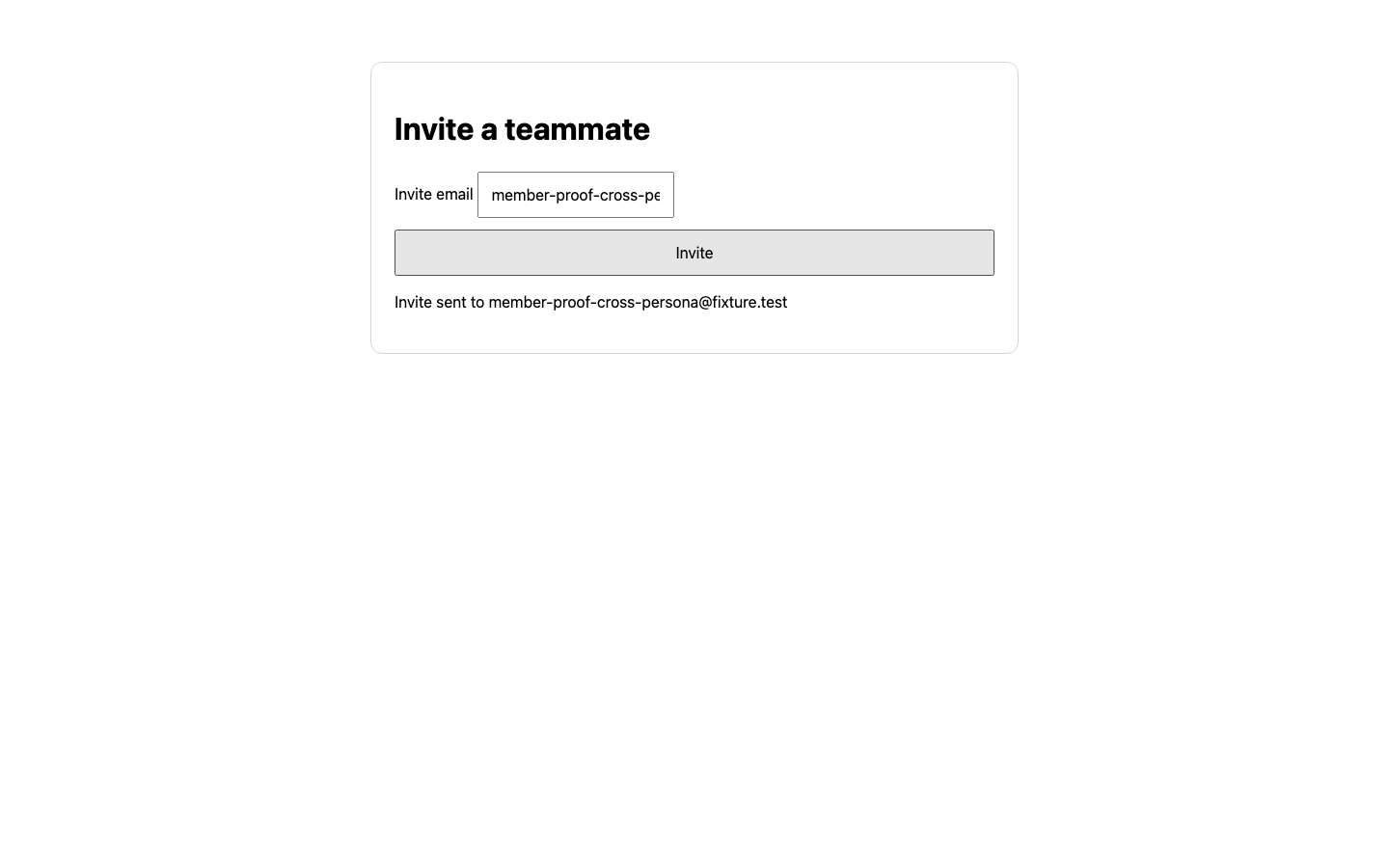
- Admin created the invitation.
- The Email Clone delivered its link.
- A separate member browser accepted.
Check what each role can do
Joining the workspace is only the start. Check the pages and actions available to owners, members, and invited users, including access they should not have.
- Owner billing controls
- Member project access
- Pending invitation restrictions
Workspace access
example.acme.test site-specific account| Role | Projects | Billing | Members |
|---|---|---|---|
| Owner | edit | manage | invite |
| Member | edit | — none | — view |
| Invitee | — pending | — none | — none |
Verification code: member workspace opens
Frequently asked questions
Have a specific workflow in mind?
Talk to us
Is Molar only for QA specialists?
Developers, QA, platform teams, and coding agents can use the same workflow.
Can we control who sees a run?
Access follows your workspace permissions and authenticated project access.
Can a teammate rerun my flow?
Yes, if they have access to the project and its saved logins.
Watch both sides of an invitation.
Create a free workspace and describe the first flow to test. Or check a public page first, no account needed.
Free during the beta. No card.